Guide : In Play
The following section takes you through the process of starting a match and how to use the app whilst the match is in play.
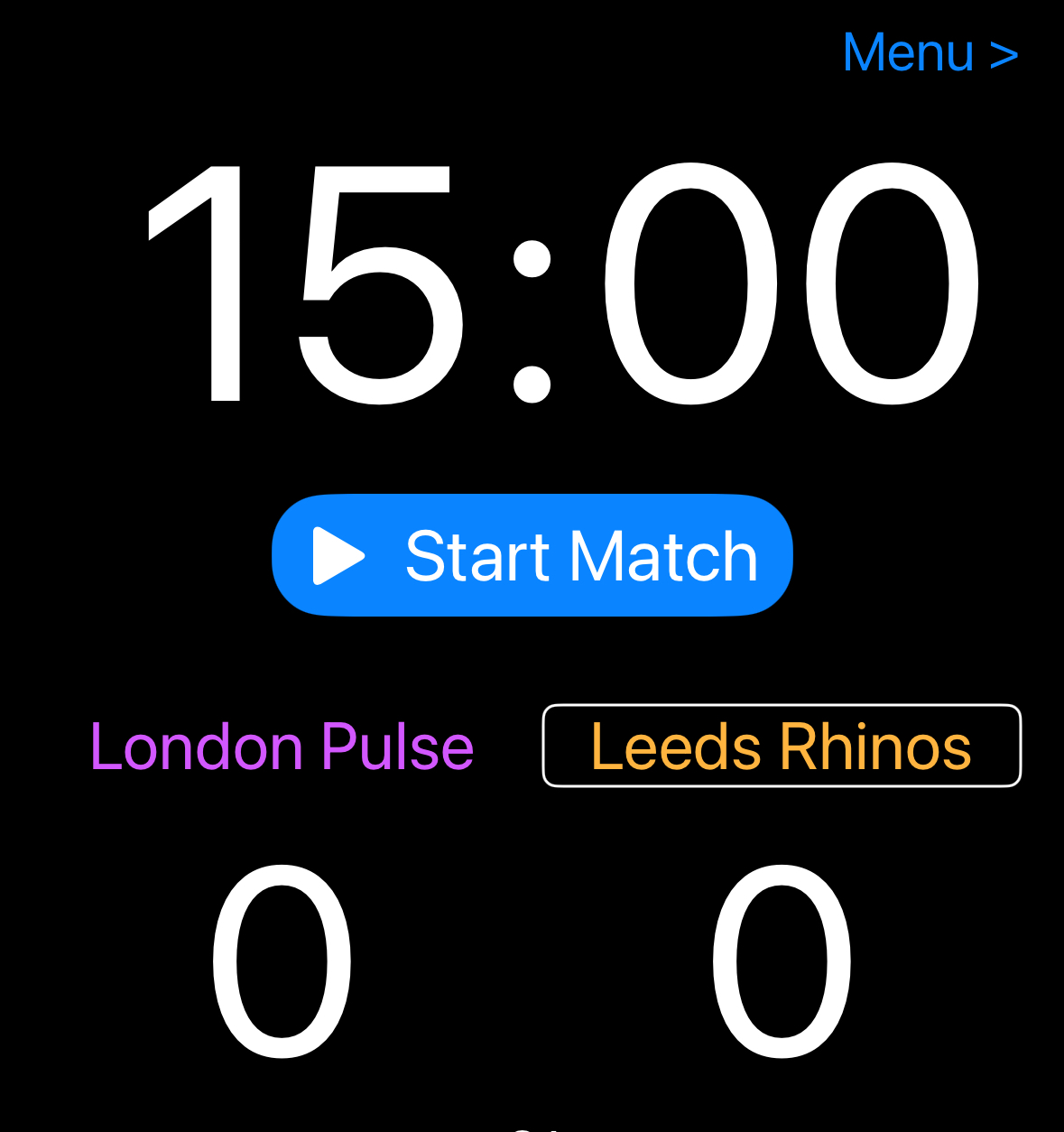
Once any match customisation options have been set in the Match Setup screen (such as team names, colours, number and duration of quarters, and the team with the first centre pass), you are ready for the match to start.
When the first centre pass whistle is blown, press the Start Match button and the timer will start running.
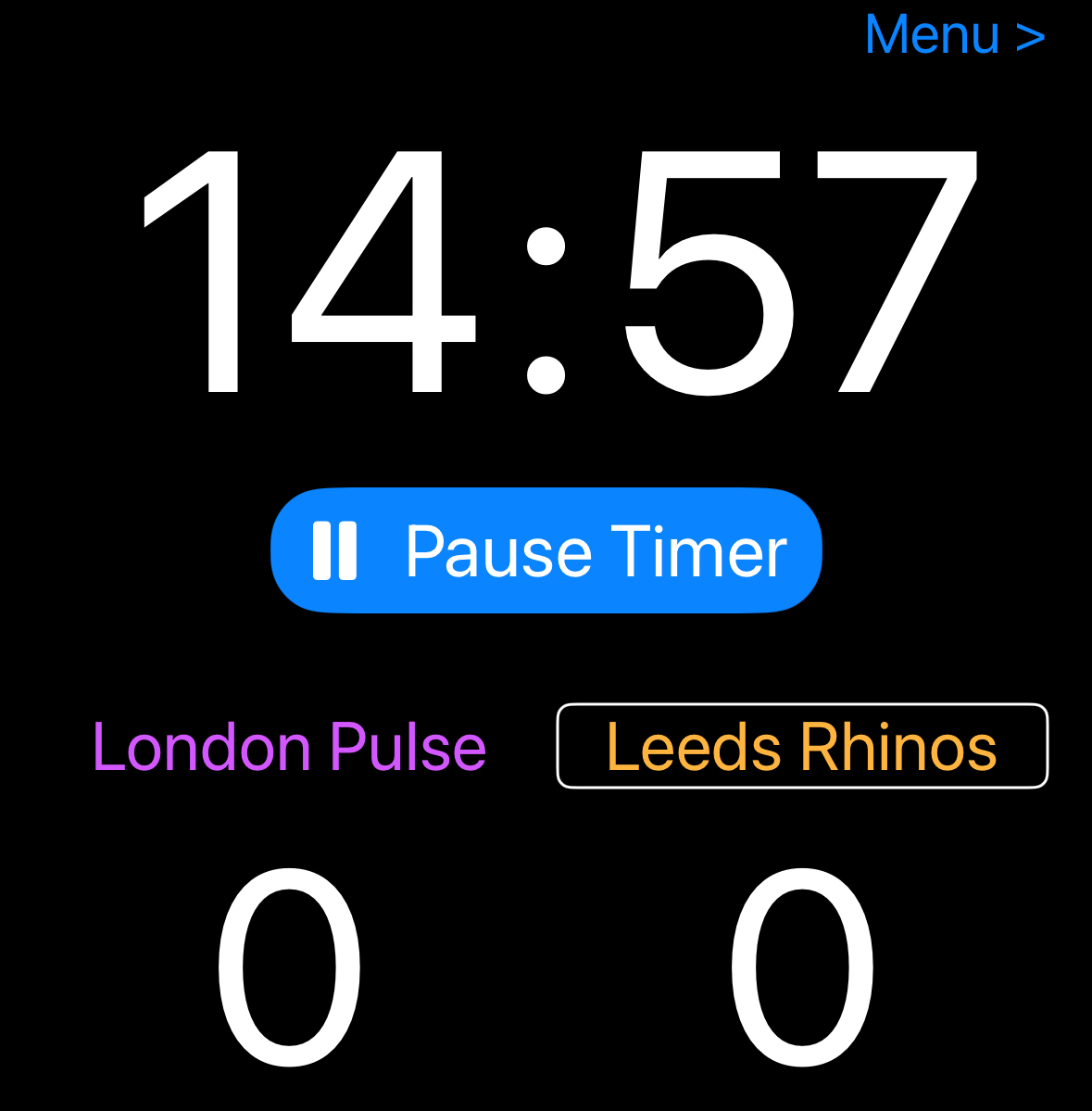
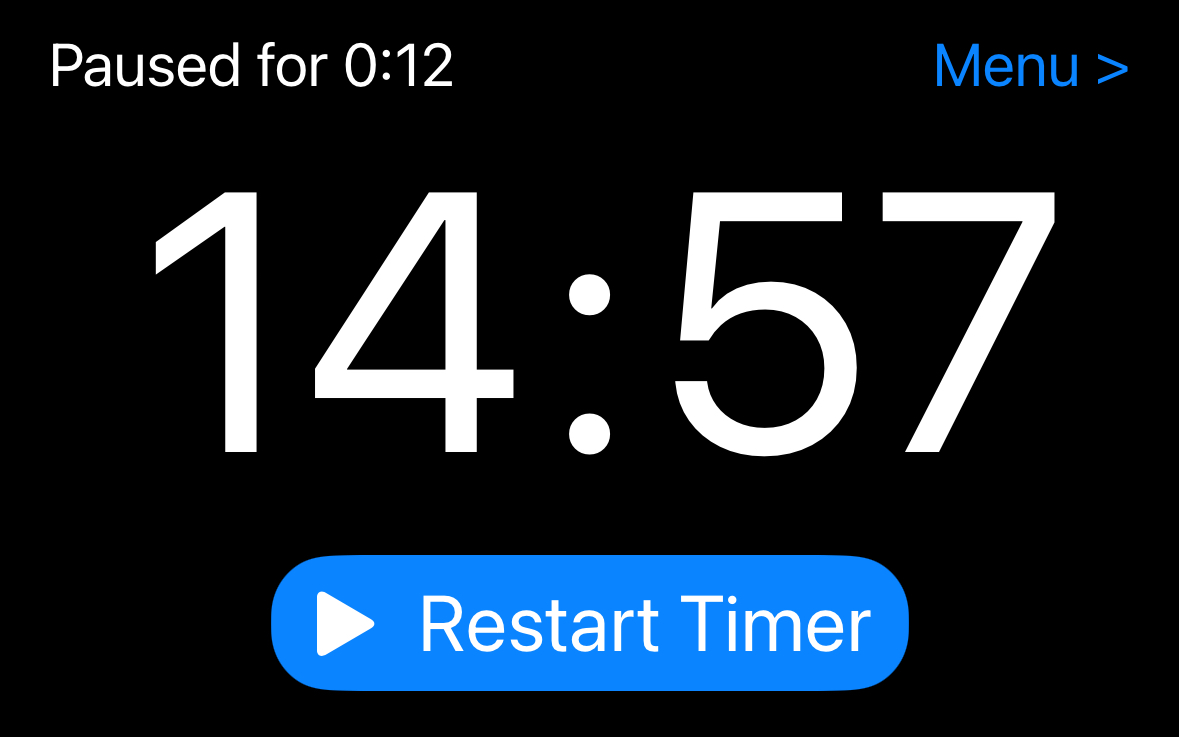
If an umpire calls “hold time”, press the Pause Timer button. This will start an automatic pause timer, which is displayed at the top of the screen.
When an umpire restarts the match, press Restart Timer. The pause timer will disappear and the main timer will restart.
The Pause Timer feature can be disabled in the Preferences screen.
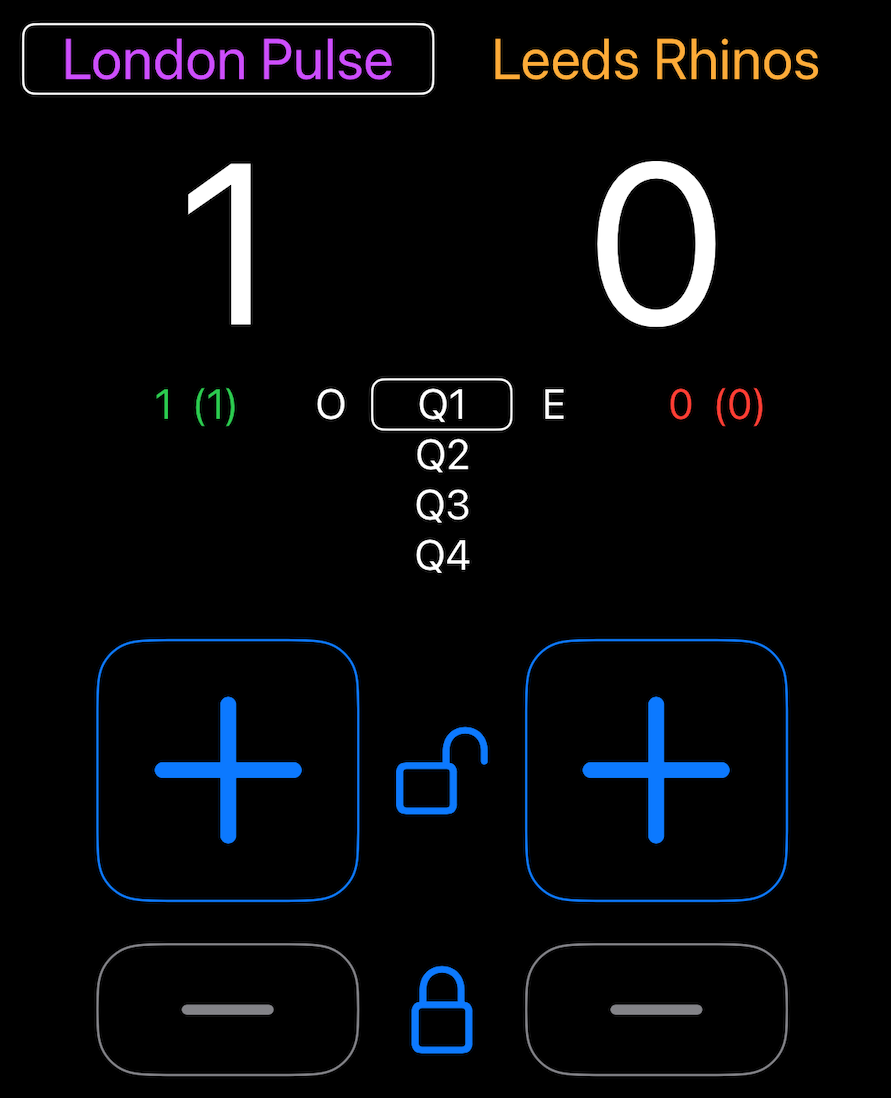
When a goal is scored, press the large “+” button that corresponds to the team that scored the goal. The “+” buttons are automatically enabled when the timer is running and are disabled when the timer is paused.
If the score needs to be updated whilst the timer is paused, press the padlock icon between the “+” buttons to re-enable them.
If a correction to the score needs to be made and a goal removed, use the “–” buttons. These buttons are normally disabled and must first be enabled by pressing the padlock icon.
Should it be necessary to adjust the remaining time (for example if an umpire calls “hold time” and there is a delay), once the timer is paused, the Timers section of the menu is enabled.
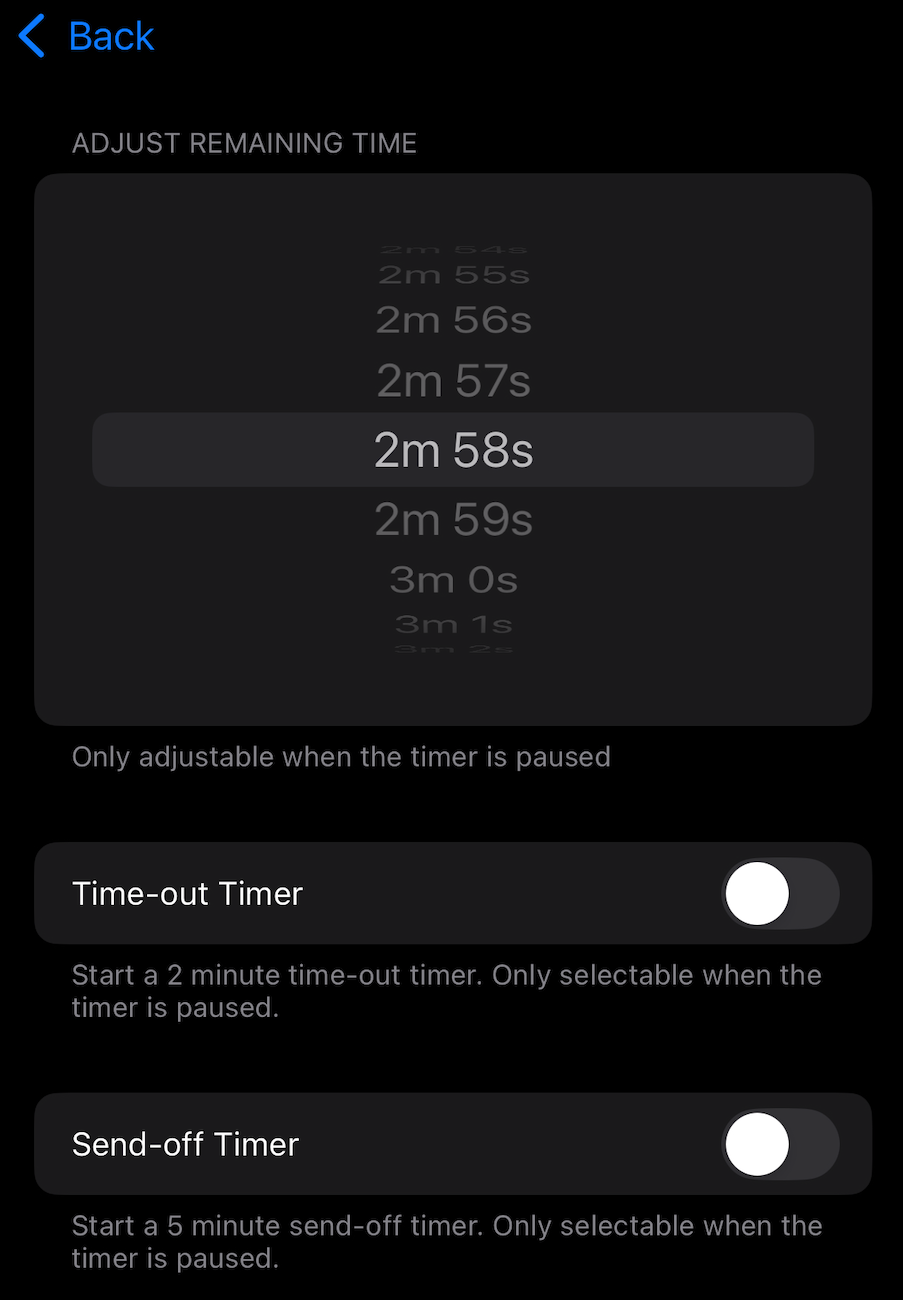
The timer can then be adjusted by scrolling the timer in the top section of the Timers screen.
There are also options on this screen to start a 2 minute time-out timer or a 5 minute send-off timer. These timers are activated by pressing the corresponding switch.
When active, the time-out and/or send-off timers are displayed at the top of the main screen and are automatically started and stopped with the main timer.
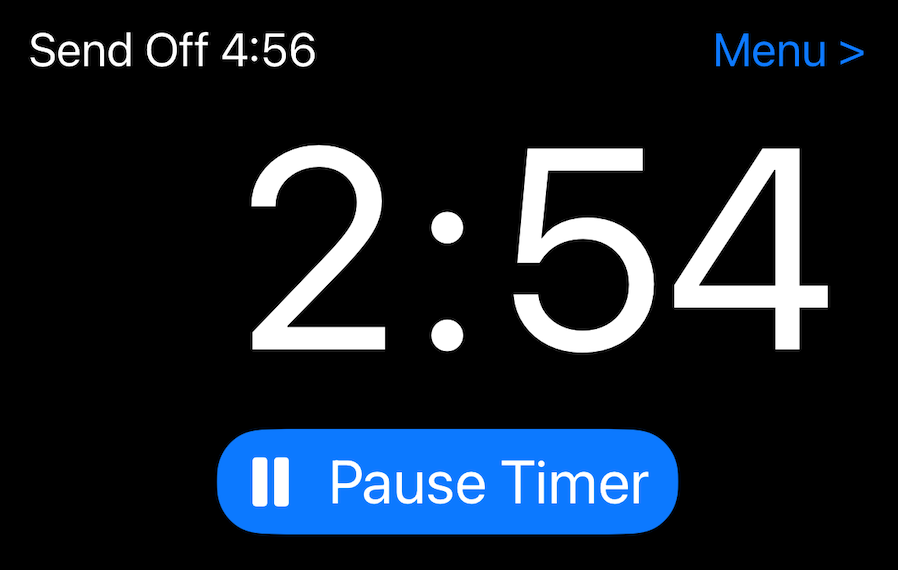
If a quarter ends and a time-out or send-off timer is still active, the remaining duration is automatically carried forward to the start of the next quarter.